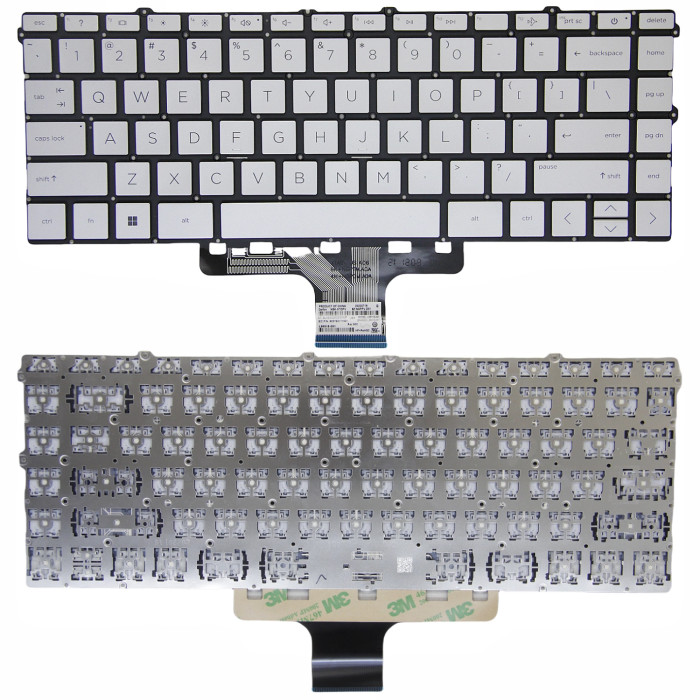
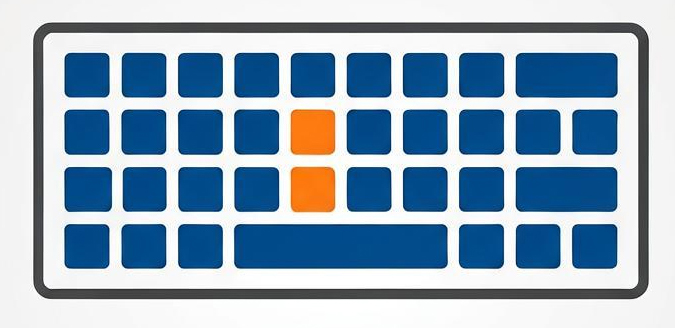
HP Envy x360 15-EW, 15-EY, 15Z-EY silver US keyboard

SKU: LT-10028338 In Stock
US $5.80
Model Envy x360 15-EW, 15-EY, 15Z-EY
Color silver
Condition NEW
Location shenzhen,China

Replacement Keyboard – Backlight Type & Compatibility Guide

HP Envy x360 15-EW, 15-EY, 15Z-EY silver US keyboard (Model: Envy x360 15-EW, 15-EY, 15Z-EY) is a replacement keyboard designed for laptop systems. The backlight type and interface (pin count) are critical – keyboards come in non‑backlit, single‑color (white/blue/red), rainbow (color‑cycling), and true RGB (zone‑controlled or per‑key) variants. Using the wrong backlight type or pin configuration will result in non‑functional backlight or keyboard failure.

Technical Specifications:

  • Part Number: Envy x360 15-EW, 15-EY, 15Z-EY
  • SKU: LT-10028338
  • Color: silver
  • Product Status: Brand New
  • Warranty: 90‑day replacement

Compatible Systems (reference):

240 G10 245 G10


TPN-C157


HP Envy x360 15-EW Series

HP Envy x360 15-EW0013DX

HP Envy x360 15-EW0023DX

HP Envy x360 15-EW1047NR

HP Envy x360 15-EW1058WM

HP Envy x360 15-EW1073CL

HP Envy x360 15-EW1082WM


HP Envy x360 15-EY Series

HP Envy x360 15-EY0013DX

HP Envy x360 15-EY0023DX

HP Envy x360 15-EY1045CL

HP Envy x360 15-EY1077WM

HP Envy x360 15Z-EY Series


HP Pavilion x360 14-EK Series

HP Pavilion x360 14-EK0013DX

HP Pavilion x360 14-EK0033DX

HP Pavilion x360 14-EK0073DX


HP 14-EM series

HP 14-EM0000 Series

HP 14-EM0018CA

HP 14-EM0033NR

HP 14-EM0167NR

HP 14-EM0225NR


HP 14Z-EM series

HP 14Z-EM0000 Series


HP 14-EP Series

HP 14-EP0008CA

HP 14-EP0010NR

HP 14-EP0033CL

HP 14-EP0063CL

HP 14-EP0097NR

HP 14-EP0145CL

HP 14-EP0199NR

HP 14-EP0792WM

HP 14-EP1047NR

HP 14-EP1063CL


HP 14T-EP Series

HP 14T-EP0000 Series

HP 14T-EP1000 Series

Backlight Types – What You Need to Know:

  • Non‑backlit (Standard) – no LEDs; cheapest, lowest power.
  • Single‑color (White/Blue/Red) – all keys light up one color. Simple 2‑wire or 3‑wire connection.
  • Rainbow (Color‑cycling) – automatically cycles through colors; no software control. Usually 4‑wire.
  • Full‑zone RGB – all keys change color together via software (e.g., Alienware, MSI). Requires 5‑pin or 6‑pin connector and dedicated controller.
  • 4‑zone RGB – keyboard divided into 4 zones, each independently controllable. Common in mid‑range gaming laptops.
  • Per‑key RGB – each key has its own LED, full programmability. Highest complexity, typically 6‑pin or more.

Pin Count & Interface – Why It Matters:

  • 2‑pin – basic power; no data communication. Used for non‑backlit or simple single‑color (constant on).
  • 3‑pin – adds a speed/control line (often for brightness adjustment via voltage).
  • 4‑pin – typically used for rainbow (color‑cycle) or basic RGB; includes data line for color commands.
  • 5‑pin / 6‑pin – required for addressable RGB (zone or per‑key), with separate clock and data lines.
  • Pinout differs by brand – even with the same pin count, the pin assignments (e.g., power, ground, data) are not universal. Always match the exact specification for your laptop model.

How to Identify Your Keyboard's Backlight & Pinout:

  • Physical inspection – remove the keyboard (if possible) and check the ribbon cable connector. Count the metal contacts (pins) on the cable.
  • Check the original keyboard's sticker – often lists the backlight type (e.g., “RGB”, “WLED”) and pin count.
  • Use software – if the keyboard is working, use the manufacturer's control software (e.g., Alienware Command Center, MSI Dragon Center) to see what backlight features are available.
  • Search online – look up your laptop model + “keyboard replacement” to see what others have used.
  • BIOS/UEFI – some laptops show backlight settings in the BIOS, which can hint at the supported type.

Important Compatibility Note:

  • A non‑backlit keyboard will work in a backlit‑capable laptop (backlight simply won't function).
  • A backlit keyboard installed in a non‑backlit laptop will not light up – the motherboard lacks the necessary circuitry.
  • RGB keyboards from different brands are not interchangeable – even if the connector looks the same, the control protocol (e.g., Razer Chroma, ASUS Aura) differs.
  • Pin count must match exactly – a 4‑pin keyboard cannot be used on a 5‑pin header without an adapter (rarely available).

Still not sure which keyboard fits? Send us a clear photo of your original keyboard's ribbon cable connector (showing the contacts) and the back side of the keyboard – we'll identify the correct backlight type and pin count for you.
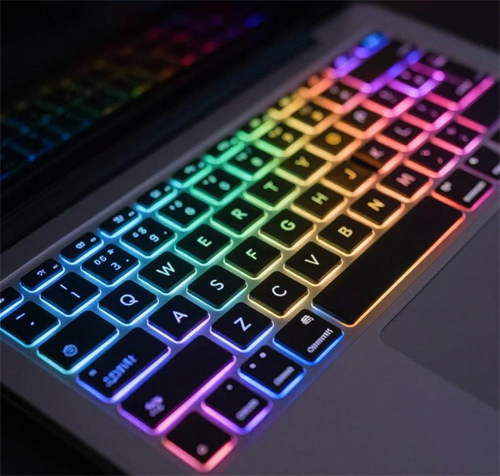
⚠️ Keyboard Backlight & Interface Compatibility – Critical!
Using the wrong backlight type or pin count will cause the keyboard to malfunction or not light up at all.
  • Backlight type – non‑backlit, single‑color, rainbow, full‑zone RGB, 4‑zone RGB, per‑key RGB. Each requires different control circuitry.
  • Pin count – 2, 3, 4, 5, or 6 pins. Must match the motherboard's keyboard connector exactly.
  • Brand/protocol – even with the same pin count, different brands use proprietary communication (e.g., ASUS Aura, Razer Chroma, MSI Mystic Light).
Always check your original keyboard's ribbon cable and the motherboard header before ordering. When in doubt, send us a photo of both.
Keyboard quality testing

100% Tested – Keys, Backlight & Interface Verified

Every keyboard is individually tested for all key switches, backlight functionality (color accuracy, brightness, and zone control), and signal integrity across the connector. We verify that the keyboard communicates correctly with standard laptop controllers and that the backlight matches the specified type (non‑backlit, single‑color, RGB, etc.).

Key switch test Backlight color & brightness Pin/signal integrity

Laptop Keyboard Backlight & Interface Guide

Understand backlight types, pin counts, and how to choose the right replacement

1 Backlight Types – Comparison

Type Colors Control Typical Pin Count Usage
Non‑backlit None N/A 2‑pin Budget laptops
Single‑color White/Blue/Red On/Off (or brightness via voltage) 2‑pin / 3‑pin Business, basic laptops
Rainbow (Color‑cycling) Auto‑cycle all colors Automatic (no software) 4‑pin Mid‑range gaming
Full‑zone RGB Software‑controlled single color across all keys Dedicated software 5‑pin Gaming (Alienware, MSI)
4‑zone RGB 4 independent zones Dedicated software 5‑pin / 6‑pin Mid‑high gaming
Per‑key RGB Each key individually addressable Complex software 6‑pin+ Premium gaming (Razer, ASUS ROG)

2 Pin Count & What It Means

2‑3 Pin
Basic Power

Simple on/off or brightness via voltage. Used for non‑backlit and single‑color keyboards.

4‑5 Pin
Data Communication

Adds data lines for color control (rainbow) or zone RGB. Requires driver support.

6‑Pin+
Addressable RGB

Used for per‑key RGB, with separate clock and data lines. Highest complexity.

Important: Pin count alone is not enough – the pinout (which pin does what) and communication protocol vary by manufacturer. Always match the exact specification for your laptop model.


3 How to Identify Your Keyboard's Backlight & Interface

Physical Inspection

Remove the keyboard and look at the ribbon cable connector. Count the metal contacts – that's your pin count. Check the sticker for backlight type (e.g., “RGB”).

Software Detection

Use the laptop's built‑in keyboard backlight control (Fn+space, etc.) and observe the behavior – if it cycles colors, it's likely rainbow; if software controls zones, it's addressable RGB.

Online Research

Search your laptop model + “keyboard replacement” to find part numbers and specifications shared by other users or sellers.


4 How to Choose the Right Keyboard

Match the Backlight Type

If your laptop supports RGB, you can install a non‑backlit keyboard (no light) but not vice‑versa. For RGB, ensure the motherboard has the right controller.

Pin Count Must Match

Count the contacts on your original keyboard's ribbon cable. The replacement must have the same number – no adapters available.

Consider Compatibility Protocol

Even with the same pin count, different brands use different protocols. For RGB, check if the keyboard is designed for your specific laptop model.

Test Before Installation

If possible, connect the new keyboard without fully installing it to verify backlight and key function before final assembly.

Not sure which keyboard fits your laptop? Take a clear photo of the keyboard's back side and the ribbon cable connector (showing contacts) — we'll identify the backlight type, pin count, and compatibility for you. Contact us →